
Sunday, July 26, 2009

8th step (last)
Here come the final stage... ~~~
Inside the box, I add on basic information about FOM.. about the event date and some detail of the course offed
I am stress out the date with red color to make it clear notice about the event day.
And I color black the phone number because usully we will looking for the contact person to get an additional info.

Ta.. da.. the finnal effect ... ~
Inside the box, I add on basic information about FOM.. about the event date and some detail of the course offed
I am stress out the date with red color to make it clear notice about the event day.
And I color black the phone number because usully we will looking for the contact person to get an additional info.

Ta.. da.. the finnal effect ... ~
p/s : hope u all will like it and some explanation through the step can help you all.
7th step
if You can see.. on the right hand canvas are still empty... at this side, I like it to put on some general info about FOM... I am using rectangle tool, and fill up the box with purple because i want it to be contras to an orange background.
 The purple look so contras...
Actually we can just add on a text on the purple box.. but it would not be look that good result...
So, what I do is... add on another image and blend it together.. below are the step.. to blend the picture, we can double clik on the layer and wait till the blending option tools appear.
 1st view
 Last view..
 The purple look so contras...
Actually we can just add on a text on the purple box.. but it would not be look that good result...
So, what I do is... add on another image and blend it together.. below are the step.. to blend the picture, we can double clik on the layer and wait till the blending option tools appear.
 1st view
 Last view..
 6th step
here coming all the idea to put on .... ~~~
Dear my friends.. don't forget our beloved MMu mascot, the EBee....
for you all information.. EBee is an electronic robotic was born in the Faculty of Creative Multimedia's Secret Laboratory and he lives in the virtual space of computers ( not human only born, a mascot have too :P ).
 the EBee, is so cute :P
p/s : don't be panic.. as usual... we only can get from internet the EBee is facing on the left hand sight... to change this view..
1) open picture in photoshop,
2) choose image > rotate canvas > flip canvas
3) drag and drop the rotation picture to the work canvas ( orange background)
4) use lasso tools to cut off the background color of the EBee picture.
Dear my friends.. don't forget our beloved MMu mascot, the EBee....
for you all information.. EBee is an electronic robotic was born in the Faculty of Creative Multimedia's Secret Laboratory and he lives in the virtual space of computers ( not human only born, a mascot have too :P ).
 the EBee, is so cute :P
p/s : don't be panic.. as usual... we only can get from internet the EBee is facing on the left hand sight... to change this view..
1) open picture in photoshop,
2) choose image > rotate canvas > flip canvas
3) drag and drop the rotation picture to the work canvas ( orange background)
4) use lasso tools to cut off the background color of the EBee picture.
5th step
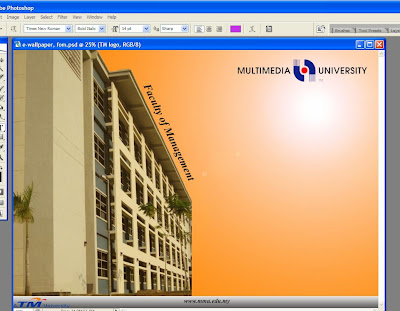
After being thinking for a while, i was wondering what the building to be show, then I decide to add a text of Faculty Of Management. To let people know, that is an FOM building. To make it appear in any angle you like, just adjust the frame word.
Cltrl + T ( to select ) > adjust to any angle you wish .
After all.. i like to add on a graduate picture... using repeted step... drag and drop your picture to the canvas, use
1 ) ctrl + T to enlage the picture.....
2 ) select magic wand tool to cut of the background picture color.
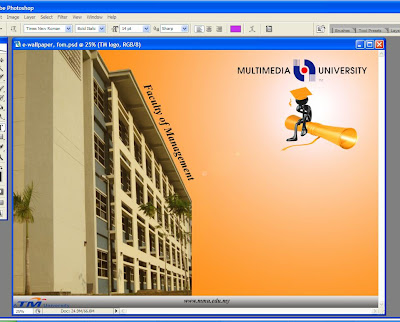
Cltrl + T ( to select ) > adjust to any angle you wish .

After all.. i like to add on a graduate picture... using repeted step... drag and drop your picture to the canvas, use
1 ) ctrl + T to enlage the picture.....
2 ) select magic wand tool to cut of the background picture color.

Ta..da... the graduate with scroll looks cool... ;)
To more show of the graduate with scroll, I add on some text below it. This text also to let people had some idea on what the FOM is all about.

Develop an Excellent Graduate
to Rule Business Environment
i can feel it most of the time :D
To more show of the graduate with scroll, I add on some text below it. This text also to let people had some idea on what the FOM is all about.

Develop an Excellent Graduate
to Rule Business Environment
i can feel it most of the time :D
4th step
Now, this task really make our brain work too fast, till we had a lot of idea and question air ... ~~~
At this point, I make a border bellow the canvas, using rectangle tool. To make it look like transparent... i am just change the color setting of the border.
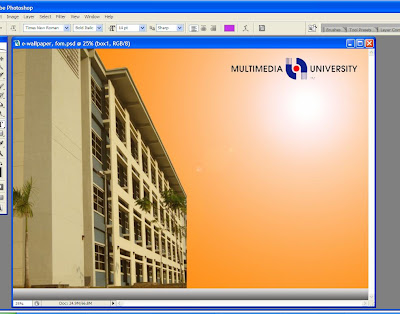
Ta..da.. ok la... but need to do more touch up
to the border..
At this point, I make a border bellow the canvas, using rectangle tool. To make it look like transparent... i am just change the color setting of the border.

Ta..da.. ok la... but need to do more touch up
to the border..
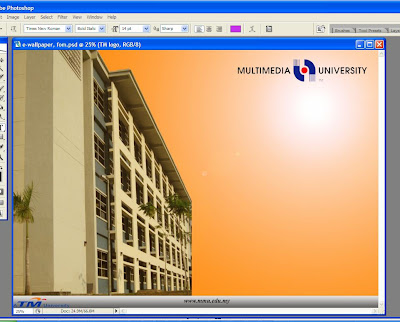
After add on the border... drag and drop the TM logo ( A TM university) to tell people that this university is own by TM. You can put it any where u like, but i would prefer to put it on the left hand sight because to make it contra to the MMU logo on the top right hand sight. Beside that I add an text at the middle of the border. this is because to let people know easily or notice where to get more info or view in more detail about our uuniversity.

Subscribe to:
Posts (Atom)